

Step-by-Step Guide on Printing Labels for Gift Boxes
Are you looking for cute ways to label gift boxes? Or to easily personalize boxes for different occasions? If so, then you’re in luck! Because today I’m going to show you how to quickly and easily turn basic gift boxes into adorable gifts.
Disclosure: This post is sponsored by Munbyn, but all opinions are my own.
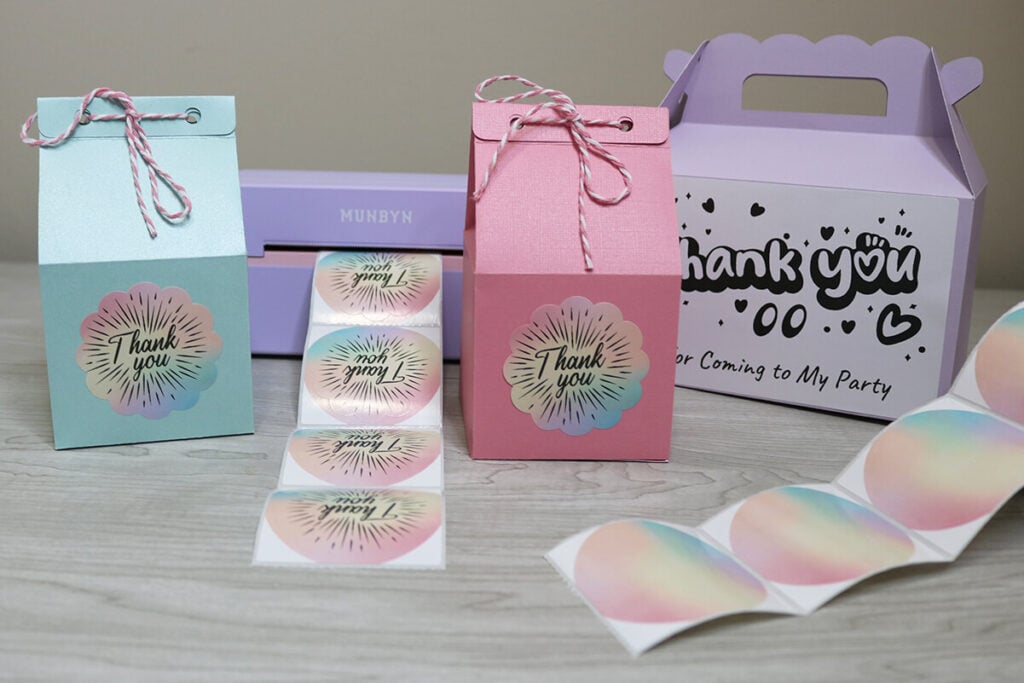
If you have followed my blog for a while, then you know that I love making my own gift boxes using my Cricut. But making labels with a Cricut is time consuming and requires a printer. Which is why I love using the Munbyn Bluetooth label printer to customize my gift boxes. In just a matter of minutes you can design and print out all of your labels. Munbyn’s Bluetooth thermal printer prints 1 label per second, saving so much time for labeling and filling your gift boxes with goodies.
Why are labels important for gift packages?
Labels are so much more than just a sticker. With labels, you can take an ordinary gift box and turn it into any theme, turning a plain box into a party favor. Or easily personalize gift boxes by creating personalized labels when giving large group gifts. And with the holidays right around the corner, this is the perfect solution for customizing gift packages for everyone on your list.
The Munbyn label printer comes with a free app with 100s of free designs. Between all of the custom label shapes and label designs, you’ll look like you’re a professional designer without having to be one.
What is a thermal label printer and how does it work?
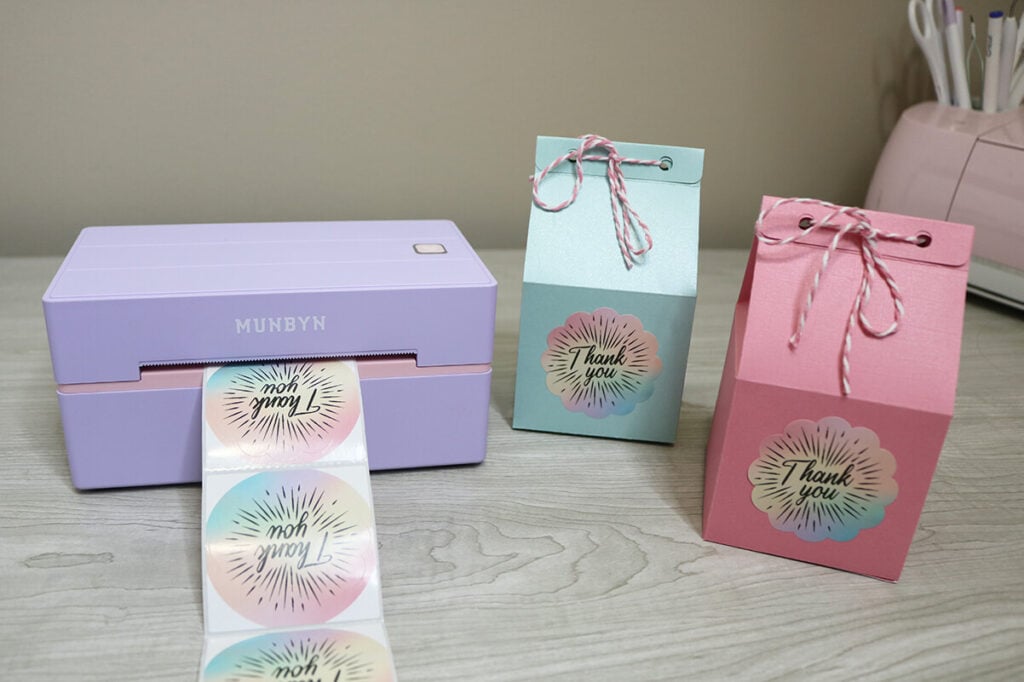
A thermal label printer is a printer that prints directly on the material without the need for ink or toner. The paper used with a thermal printer is heat sensitive so it automatically darkens to black when it passes through. This means that you never have to worry about running out of ink or toner with your Munbyn Bluetooth label printer!
Because the print comes out black, I love using colored labels like these rainbow sticker labels. But, if these don’t match your theme, there are so many more fun custom labels to choose from (even holiday themes!). The 4×6 labels are great for creating shipping labels, but I also love to use these to create larger labels for some of my larger gift box templates.

How to print custom labels: step-by-step guide
To print labels, first, you’ll need to download the Munbyn Print app. Once you open the app, you can either design your own labels using the app, choose from the large library of pre-designed labels or upload an image.
Today, I’m going to use one of the pre-designed labels because there are so many great ones to choose from. And it’s going to take less than 5 minutes to get the design and print all the labels I need for these thank you party favor gifts.
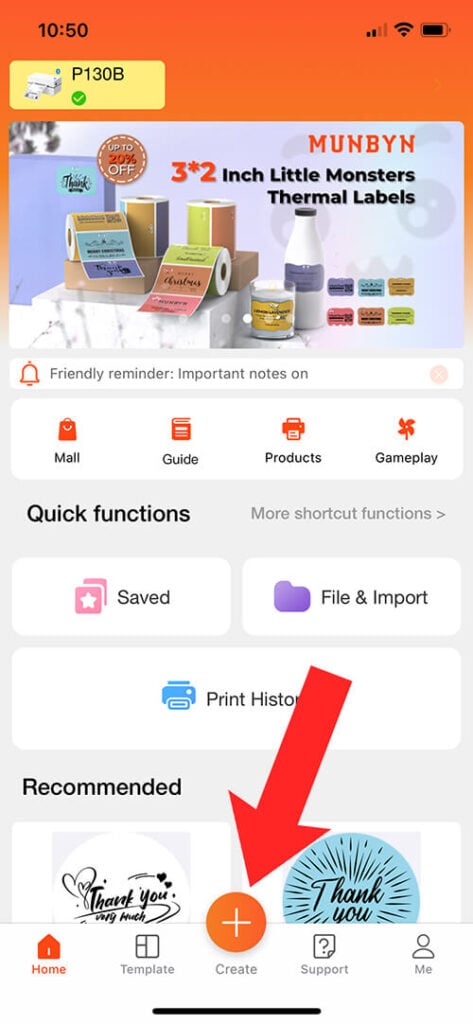
To get started, click the “+” icon above Create.
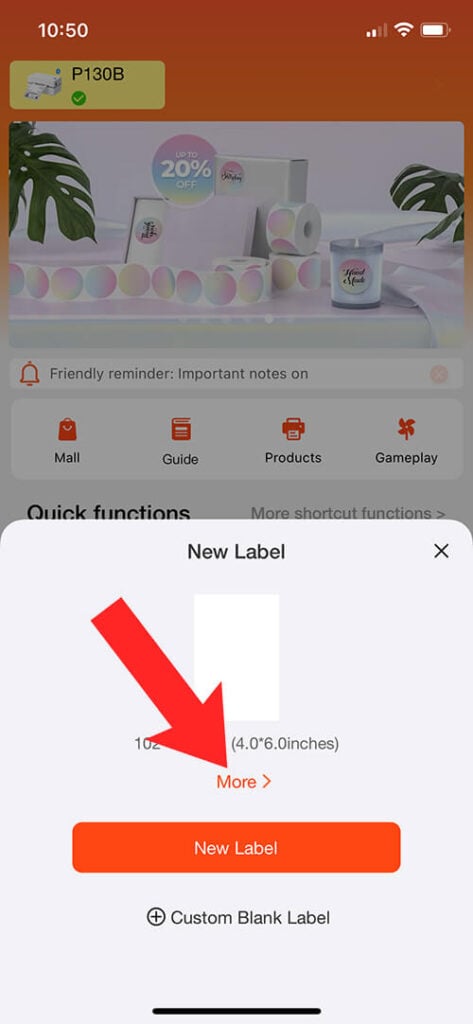
Then click on “More” under “Label” and select the label you are using.
If you are designing your own label, use the illustration tools to add text, images, borders, etc. There are so many features to choose from so you can get really creative when designing your labels. If you would like to use a pre-made label, select the Illustration option.
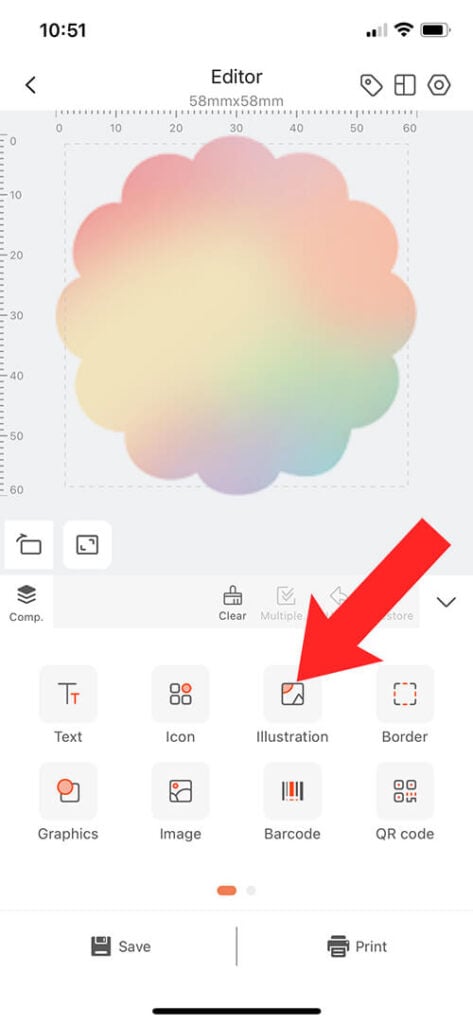
This will open up a selection of categories. Scroll until you find the category you need and select it. Then scroll through the images and select the image that you want. After the image loads on your label, select Print.

The image will open up in a print preview. If you haven’t already, make sure to connect the label printer and load the labels. If you are using your phone or tablet, you can easily connect this using Bluetooth. The Bluetooth connection is one of my favorite features of this Munbyn Bluetooth label printer because it’s quick and easy and I don’t have to drag my laptop upstairs and connect it with a USB cord.
And then select Print to print out your labels.
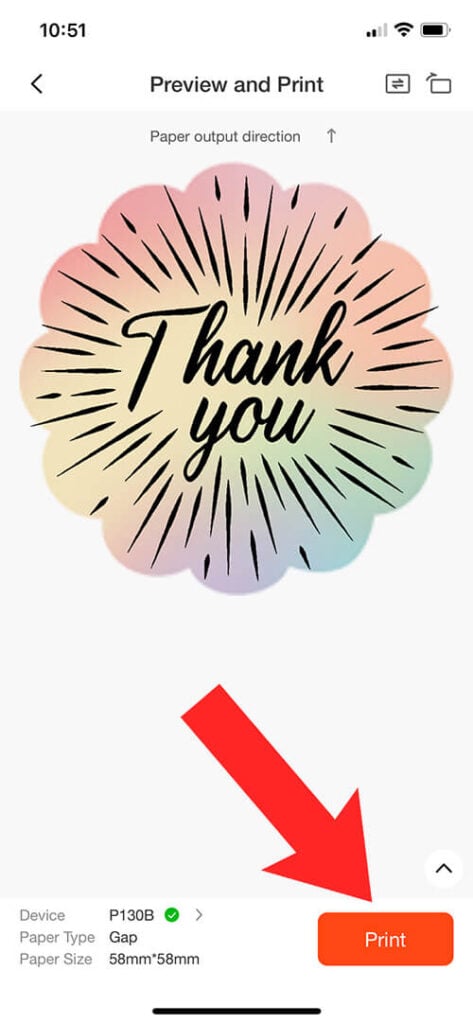
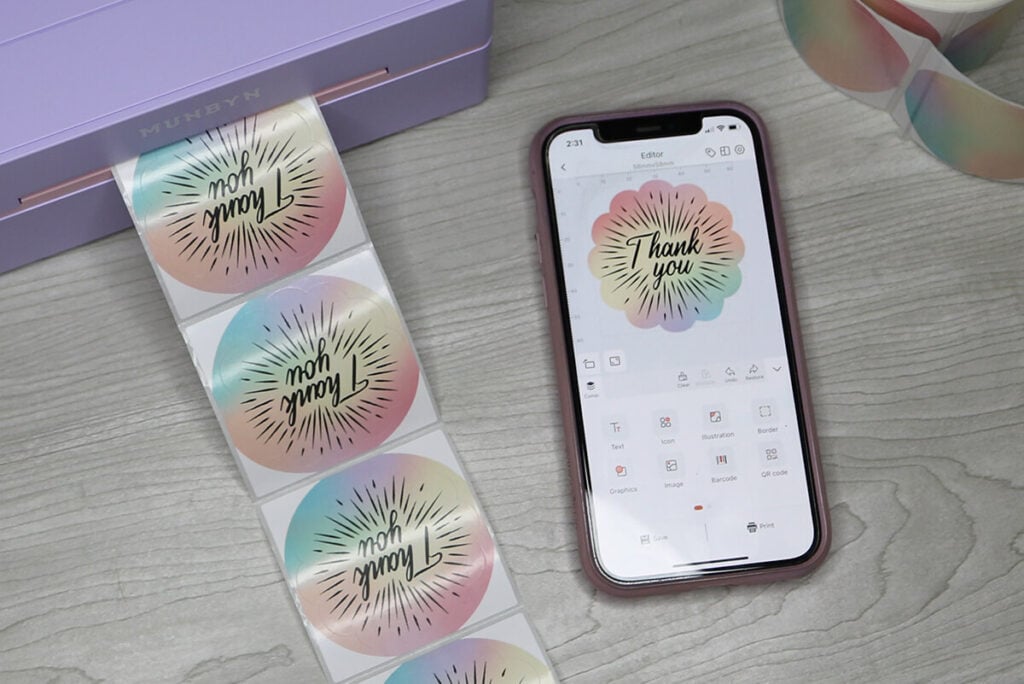
The labels print just as they look in the app! And with a printing speed of 1 label per second, you can print an entire roll in no time.
Why Choose the Munbyn Label Printer?
Munbyn empowers crafters and business owners to create custom labels and establish a personal connection with package receivers. With a label printer, there is no need to print and then cut labels, saving a lot of time. And the Bluetooth connection allows you to print directly from your phone or tablet which is extremely convenient.
Printer specs:
1. High resolution, ensuring clear and crisp sticker labels.
2. Supports both USB and Bluetooth connection, enabling you to print directly via phone, and also easy to print via PC
3. Munbyn Print App has over 1000 templates for designing labels
4. Prints labels of different sizes, such as 2″x2″, 2.25″x1.25″, 4″x6″, 3″x3″
5. Prints fast, 150mm/s, 1 label per second
6. Requires no ink or toner,saves cost in the long run
7. Super compact, doesn’t take up much space.

Other Uses of Munbyn Bluetooth Label Printers
While I love using labels to personalize gift boxes, there are so many other uses that I love using labels for. Use the Munbyn label printer for:
- shipping labels
- product labels
- thank you cards
- logo stickers
- QR code
- branding materials
- organizing supplies
- and so much more!
Munbyn discount code
Want to try the Munbyn Bluetooth label printer but don’t want to pay full price? Use the code “BLOG12OFF” for a 12% discount on orders, with no minimum purchase required.
You can also find this Munbyn Bluetooth label printer on Amazon, and for an additional discount, use the code “05blogoff“.
Need gift box templates to use with your Munbyn Thermal Printer? Check out these gift box templates that fit perfectly with Munbyn’s custom labels.
Milk Carton Favor Box Templates
Share Post to Pinterest
Share the love by using the image below to post on Pinterest. This helps other crafters find this and helps to keep my SVG files free!

