

Mardi Gras Photo Booth Props Printable & SVG
Celebrate Mardi Gras with these festive Mardi Gras Photo Booth Props Printable designs! Or download the Free Photo Booth Props SVG Files to create these fun photo booth props with your Cricut.
Find more layered Mardi Gras mask SVG files for kids to decorate themselves or search all of my Cricut Mardi Gras Ideas for more inspiration for your celebration.
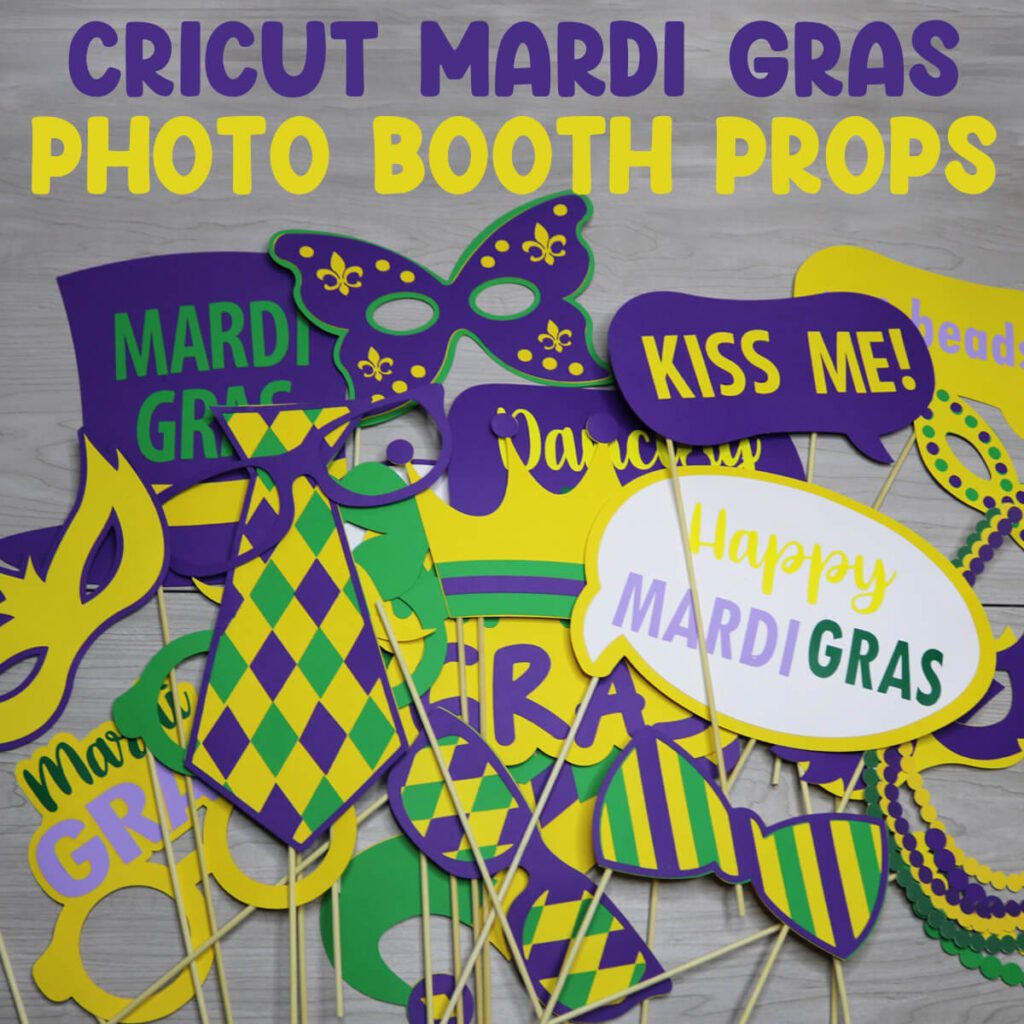
Download the Mardi Gras Photo Booth Props Printable or SVG
You can download these free Mardi Gras Photo Booth Props Printable & SVG from my members only free library (design #5 under Photo Booth Props or search “Mardi Gras Photo Booth Props”).
Don’t have a password? Unlock my free members library by entering your name and email in the form below or click here.
Supplies Needed
If you are printing the photo booth props, I recommend using a white heavy or medium weight cardstock. I use this medium weight cardstock for printing photo booth props. You will also need 1/8″ wooden dowel rods to attach to the back.
If you are making layered photo booth props with your Cricut, here are the supplies that I am using:
- 12×12 Green Medium Weight Cardstock
- 12×12 Purple Medium Weight Cardstock
- 12×12 Yellow Medium Weight Cardstock
- Yellow, Purple and Green HTV
- These 1/8″x12 Wooden Dowel Rods
- Mini Heat Press
- A good paper craft glue – this Bearly Art craft glue is what I am using.
- Cricut Maker or Explore Cutting Machine and a cutting mat.
Step-By-Step Instructions
There are 3 different ways that you can make these Mardi Gras photo booth props with these templates:
- Use the SVG file to make layered photo booth props with your Cricut or Silhouette cutting machine. There is also a DXF file if your Silhouette uses this type of file.
- Use the SVG file to use the print then cut method with your Cricut (print them and then the Cricut cuts them for you).
- Use the PDF file to print the Mardi Gras photo booth props and cut around them using scissors.
Video Tutorial For Mardi Gras Photo Booth Props
Watch the step-by-step video tutorial to learn how to make these photo booth props here:
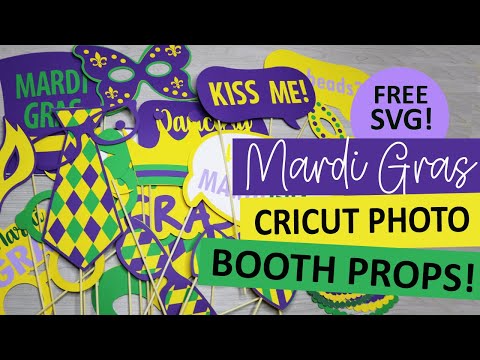
Making Layered Photo Booth Props
To make layered Mardi Gras Photo Booth Props, start by uploading the SVG file to Cricut Design Space. For help with uploading SVG files, check out my tutorial here.
The files are already the perfect size, but you can resize them if you prefer a different size. Just make sure to click on “ungroup” to ungroup all the files before you modify them. Once they are ready to go, select “Make It” and cut everything out.
Assemble the photo props just as they are in Cricut Design Space, add the stick to the back (I use hot glue for this) and they are ready to go!

How to Make Photo Booth Props Using Iron on Vinyl
When making photo booth props that have script font or small text, I like to use iron on vinyl for these sections instead. This is much quicker and easier than gluing each letter on. To do this, cut and weed the iron on vinyl. Then place it where it goes on the photo booth props.
Using a heat press, press the vinyl onto the cardstock at 305 degrees (this is the low heat setting if you have the mini) for 10-15 seconds.
Note: If the vinyl pulls up when you remove the carrier sheet, press down and add more heat until the carrier sheet is easily removed.

Using Cricut Print Then Cut to Make Photo Booth Props
To print and cut the Mardi Gras photo booth props with your Cricut, start by uploading the SVG file to Cricut Design Space. Click on “Ungroup” to ungroup the photo booth props.
If you want to make any color changes to the designs, do this first. Click on the layer of the color that you want to change and change the color using the layers panel. Then click on each design layer and select “flatten”. You will need to repeat this step for each of the layers that are grouped (have the arrow next to them).
Note: If any of the layers have a red ! after you flatten them, you will need to resize them smaller until the ! goes away.

For the layers that are a single layer (don’t have the arrow to the left), click on the layer and change the operation to print then cut.

Once all of your layers are done, click on “Make” and then “Continue”. Select “Send to Printer” and print the first sheet of your photo booth props.

After you print the sheet, add it to your cutting mat, just as you see it in the mat preview. Load the mat in your Cricut and press the flashing Cricut button. Your Cricut will first scan the sheet and then cut around the designs.
Note: If your Cricut has issues cutting around the design, make sure that the design is facing the same direction and in the same position as on the mat preview. Also, make sure you are in a well lit area as poorly lit areas can cause the Cricut to not sense the design correctly.
Repeat these steps for each mat layer. Once everything is printed and cut, glue the sticks to the back and your Mardi Gras photo booth props and then they are ready to go!

When you’re done, make sure to post these in my crafting group here or tag me if you post them on social media. I would love to see how yours come out!
Share the love and easily come back to this tutorial anytime just by saving this on Pinterest by clicking the picture below and then hitting “Save”… Plus this helps to keep my SVG files and Cricut tutorials free.

